
Zo Computer(Web, Phone, Telegram & iMessage).
Follow the numbered steps in the app. Technical examples are optional.
Before you start
Have your API key and some Outrun credit ready. Keep your key private.
Connection settingsShow
Provider: OpenAI-style
Base URL: https://api.outrun.to/v1
Example Model ID: claude-sonnet-5
Get your key from Outrun → API keys and enter it privately in the app or local settings. Test with “Reply with OK only.” Tests use credit; check Activity before retrying.
Setup Steps
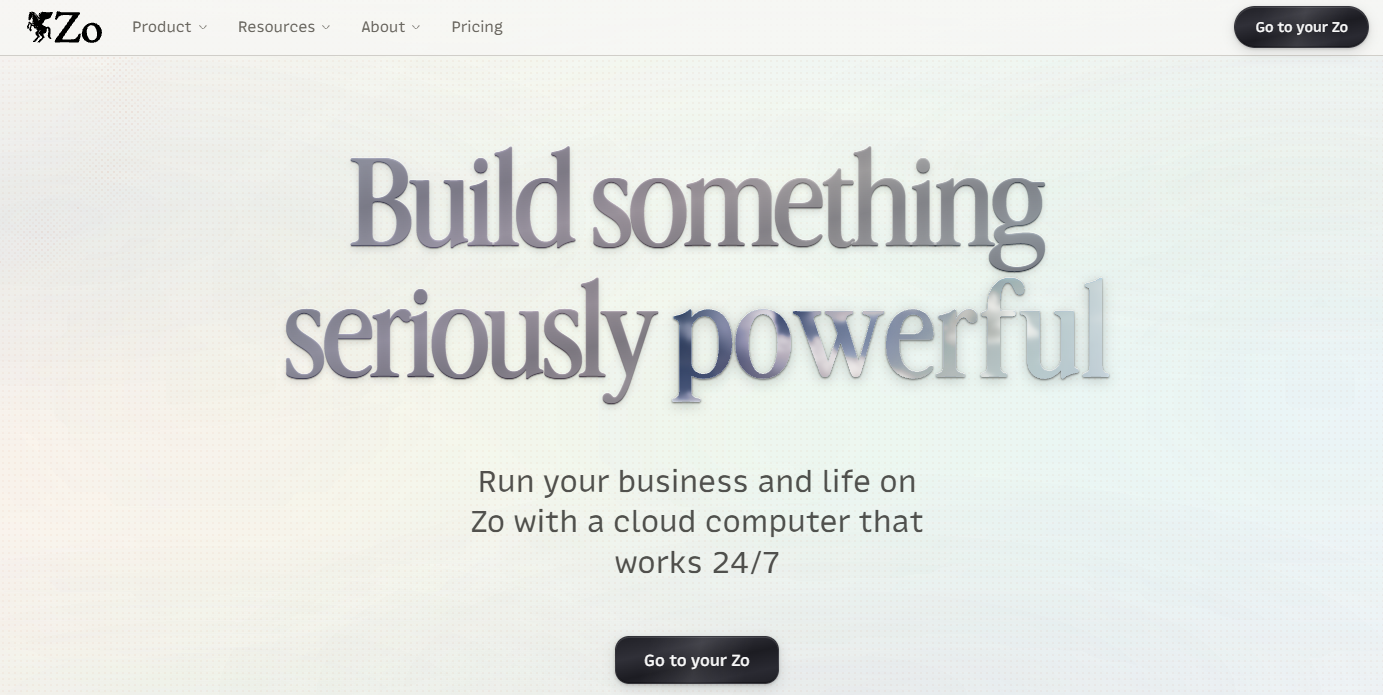
- 1Click "Go to your Zo"
Go to zo.computer and click the Go to your Zo button to sign up or sign in.
- 2Open the menu and click Settings
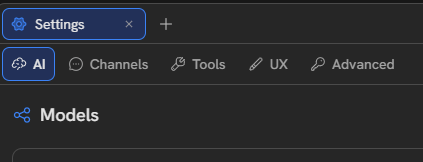
Open the menu and, under Basic, click Settings. (The same menu has Download Windows App if you want the desktop app.)
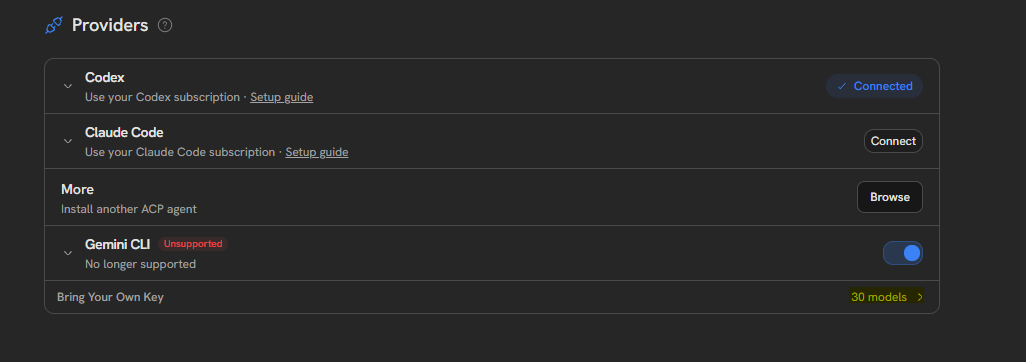
- 3Click Bring Your Own Key
In Settings -> AI, scroll to Providers and click Bring Your Own Key at the bottom of the list.
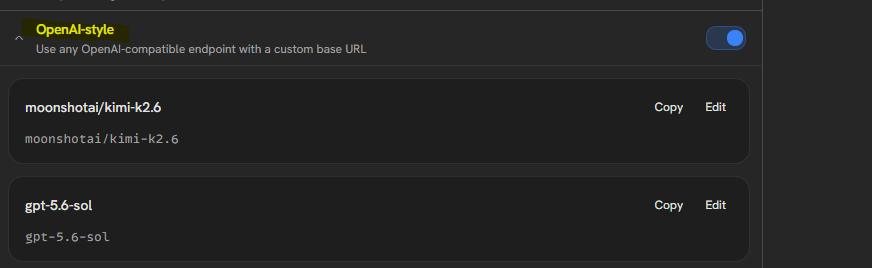
- 4Open OpenAI-style
Click OpenAI-style ("Use any OpenAI-compatible endpoint with a custom base URL") and make sure its switch is on. Models you add show up in this list, each with Copy and Edit.
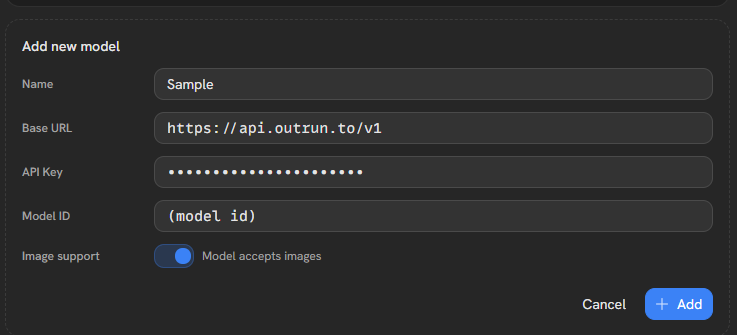
- 5Fill in Add new model and click + Add
In Add new model, enter a Name you will recognise (for example Outrun - Sonnet). Use the Base URL and Model ID in the fields below. Paste your own key only into API Key. Turn on Image support only if your model accepts images (Claude Sonnet 5.5 and Claude Sonnet 5 do). GPT models don't: Outrun blocks image requests to GPT. Otherwise leave it at Text only. Click + Add.
- 6Pick your model and say hi
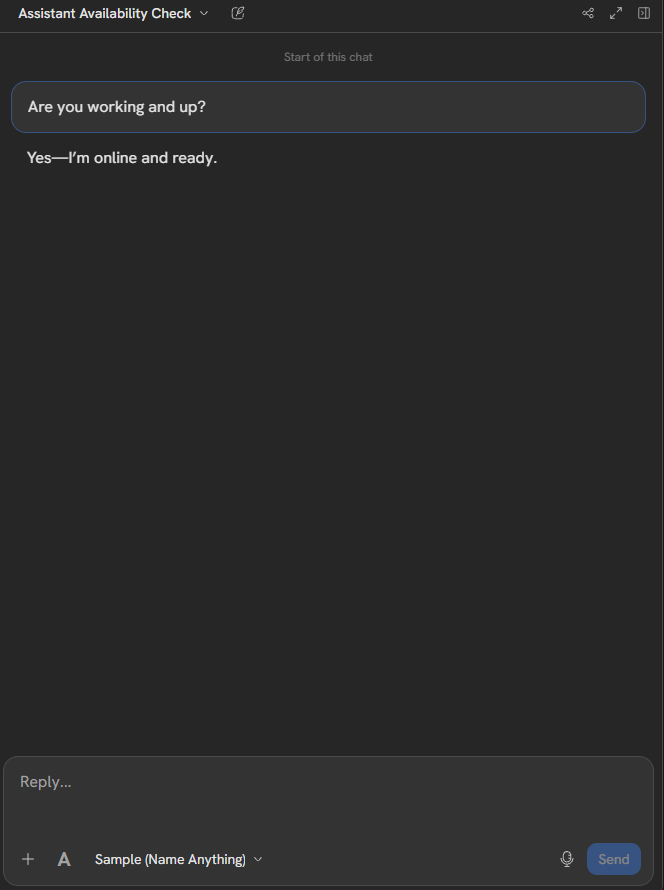
Open a chat, click the model selector under the Reply box and pick the model you just added (it shows the Name you typed). Send a quick message such as "Are you working and up?". If it answers, you're set. Usage comes out of your Outrun credit.
- 7Use it for Chat, Text, Email, Telegram & more
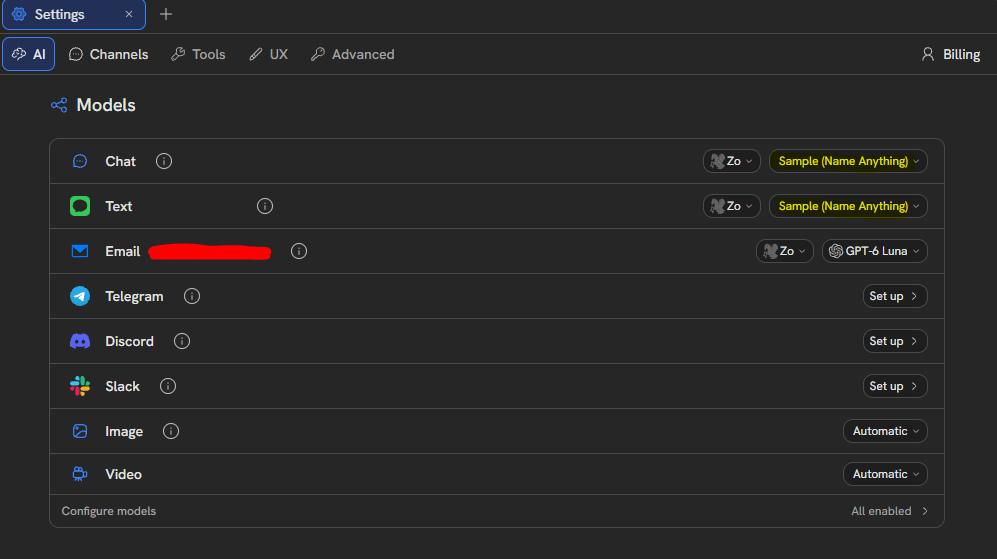
In Settings -> AI -> Models, pick your Outrun model in the dropdown next to Chat, Text and Email. Click Set up next to Telegram, Discord or Slack to text your Zo from there too. Image and Video can stay on Automatic. Custom models do not fall back to Zo's own models, so top up in the bot if your credit runs out.
Manual settings and examplesShow
Configuration Template
Zo Computer -> Settings -> AI -> Providers -> Bring Your Own Key -> OpenAI-style -> Add new model
Name:      Outrun - Claude Sonnet 5   (any name you like)
Base URL:  https://api.outrun.to/v1   (nothing after /v1)
API Key:   your Outrun key (starts with sk-rs-)
Model ID:  claude-sonnet-5   (one entry per model; also gpt-5.6-sol, gemini-3.8-flash, grok-4.7, glm-5.3-uncensored)
Then:      click + Add, pick the model in the chat model selector and send a test message.
Texting:   Settings -> AI -> Models: choose it for Chat / Text / Email; Set up Telegram, Discord or Slack.
Optional: test with a script (uses credit)Show
curl https://api.outrun.to/v1/chat/completions \
  -H "Authorization: Bearer $OUTRUN_API_KEY" \
  -H "Content-Type: application/json" \
  -d '{"model":"claude-sonnet-5","messages":[{"role":"user","content":"Hello from Zo"}],"max_tokens":32}'
If something goes wrong
Key missing or rejected (401)
Copy your current key from API keys. Paste it only into the app’s key field or your local key variable, then save and reopen the app.
Not enough available credit (402)
Check Balance and the key’s spending cap. Another request may have temporarily reserved credit; read the message before adding funds.
Wrong URL, model or limit (400/404)
Copy the exact values above. Do not add an operation such as /chat/completions to a Base URL. For GLM, context is 1000000 and maximum output is 65536.
Busy or rate limited (429)
Wait for the active request to finish or the rate limit to reset. Avoid repeatedly submitting the same request.
Interrupted request or uncertain charge
Check Activity first. Keep the request ID for support; never include your key in a message or screenshot.
Model choices and service notes
Zo Computer is a personal AI computer in the cloud. Add Outrun once as your own model, then use it on zo.computer, in the Zo app, or by texting your Zo from your phone, email, Telegram, Discord or Slack. If a request returns 402, check your account balance and key spending cap. For 429, read the error: wait for the active request to finish or the rate limit to reset. If a paid request is interrupted or its outcome is uncertain, check Activity before trying again; do not automatically repeat it. Choose an available model from Models & Pricing; paused models cannot be used.