
Uncensored (Mobile).
Privacy first · ZDR explained
Outrun keeps prompts and responses out of operational request logs across every model.
ZDR means zero data retention. A model’s ZDR badge identifies an additional processor routing control; processor limits and audit exceptions still apply.
Your connected app may save history. Outrun Playground text chats are temporary by default; account saving is optional. Media and Workspace use separate storage rules.
Privacy and retention detailsConnect Cumbersome on iPhone with your Outrun key. Open a screenshot whenever you need it. On Android, use AnythingLLM with the same connection values; its menus look different.
Before you start
Have your API key and some Outrun credit ready. Keep your key private.
On Android use AnythingLLM
On Android, install AnythingLLM. Add an OpenAI-compatible provider using the same Outrun Base URL, API key, and model ID. Its menus differ from the iPhone screenshots. The optional MCP steps below are for Cumbersome.
AnythingLLM mobile provider guideConnection settingsShow
Provider name: Outrun AI
Request API format: Chat Completions (/chat/completions)
Base URL: https://api.outrun.to/v1
Authentication method: Bearer API key (most common)
Example Model ID: glm-5.3-abliterated
Fast Abliterated Model ID: deepseek-v4.1-flash-abliterated-fast
DeepSeek Abliterated Model ID: deepseek-v4.1-flash-abliteratedServer name: Zo Computer
Server URL: https://api.zo.computer/mcp
Header name: AuthorizationEnter your Outrun key in the provider’s secret field. For Zo MCP, use your Zo access token only as the Authorization value. Test with “Reply with OK only.” Tests use credit; check Activity before retrying.
Setup Steps
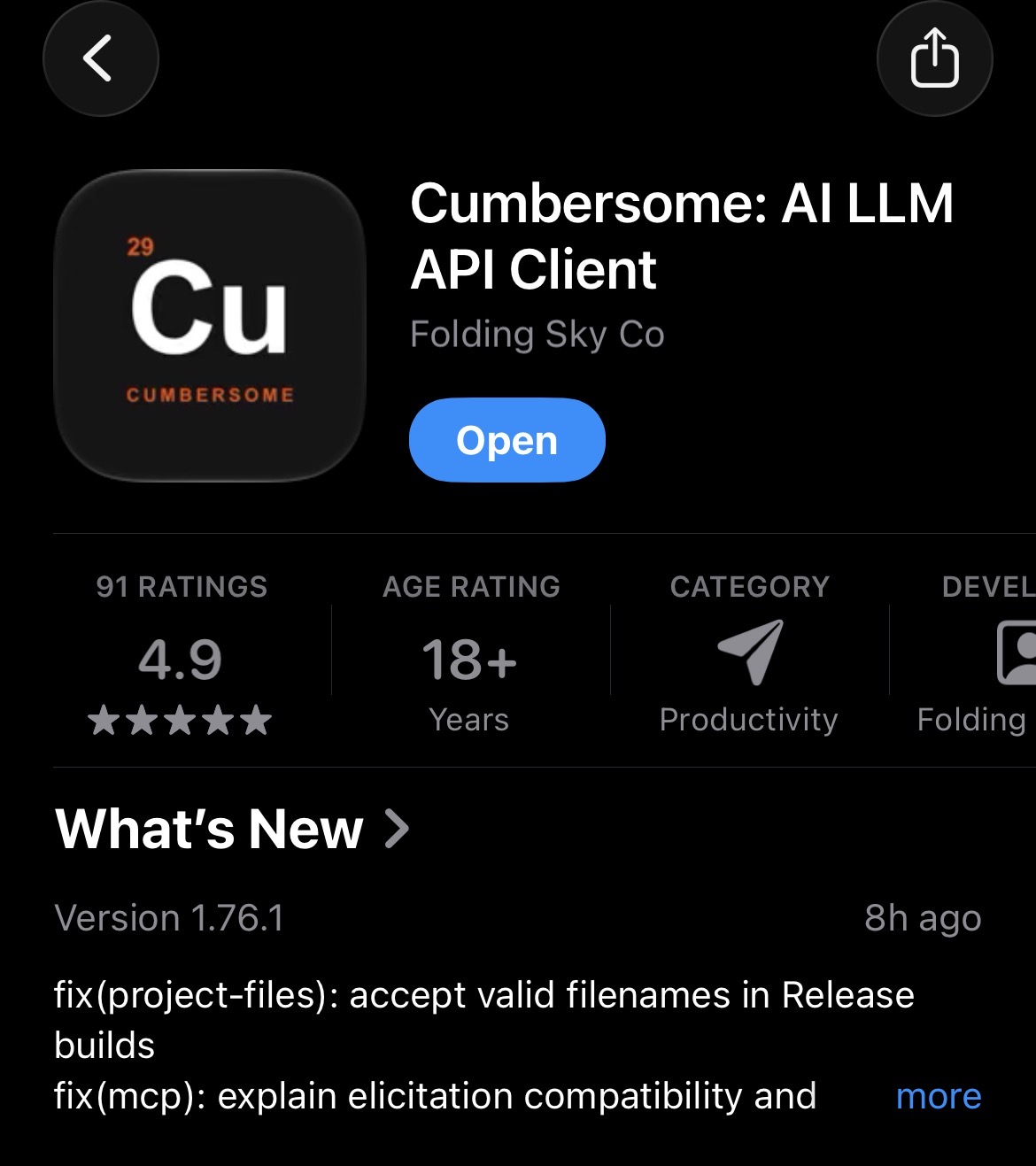
- 1Install Cumbersome
Download Cumbersome from the App Store, then open it.
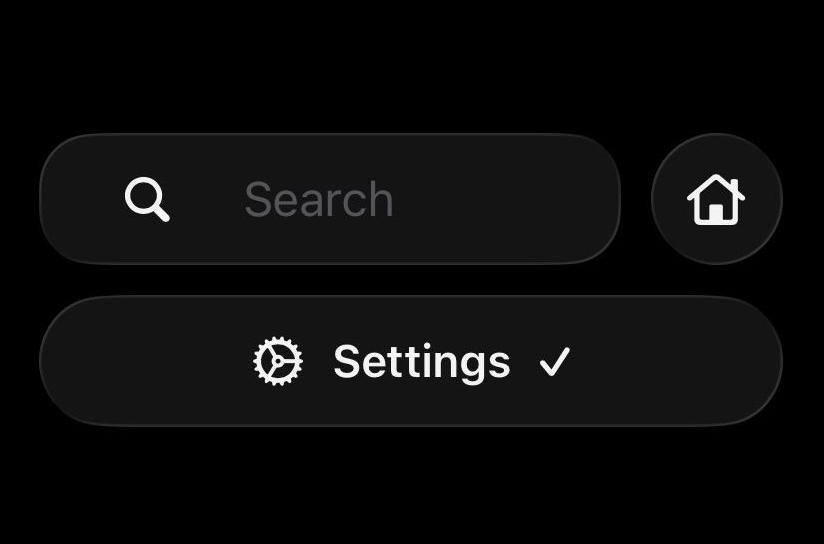
- 2Open Settings
Open the menu and tap Settings.
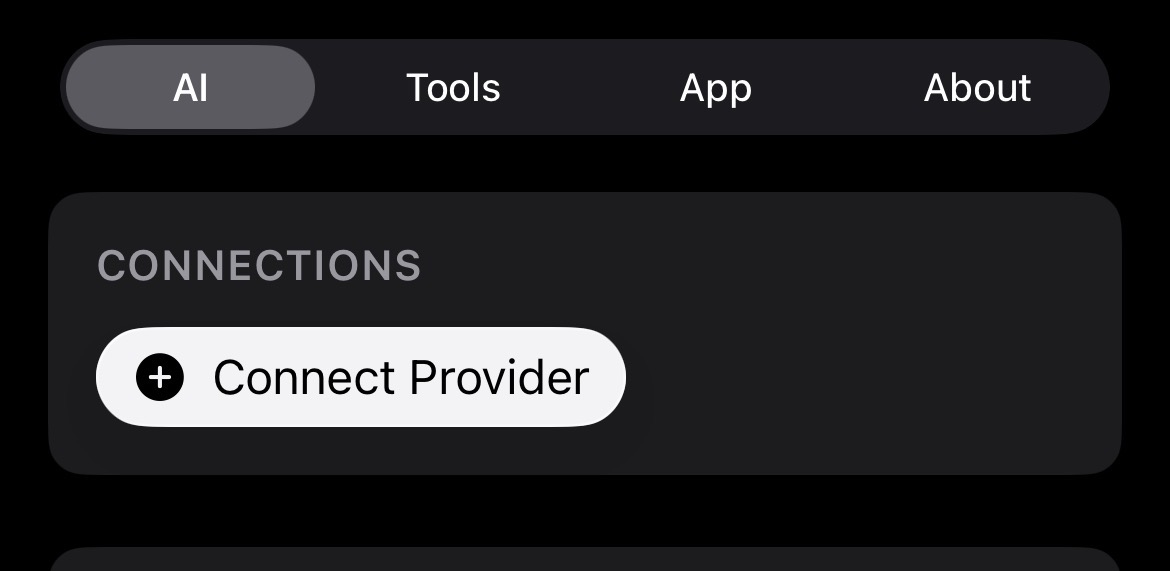
- 3Connect a provider
In the AI tab, tap Connect Provider.
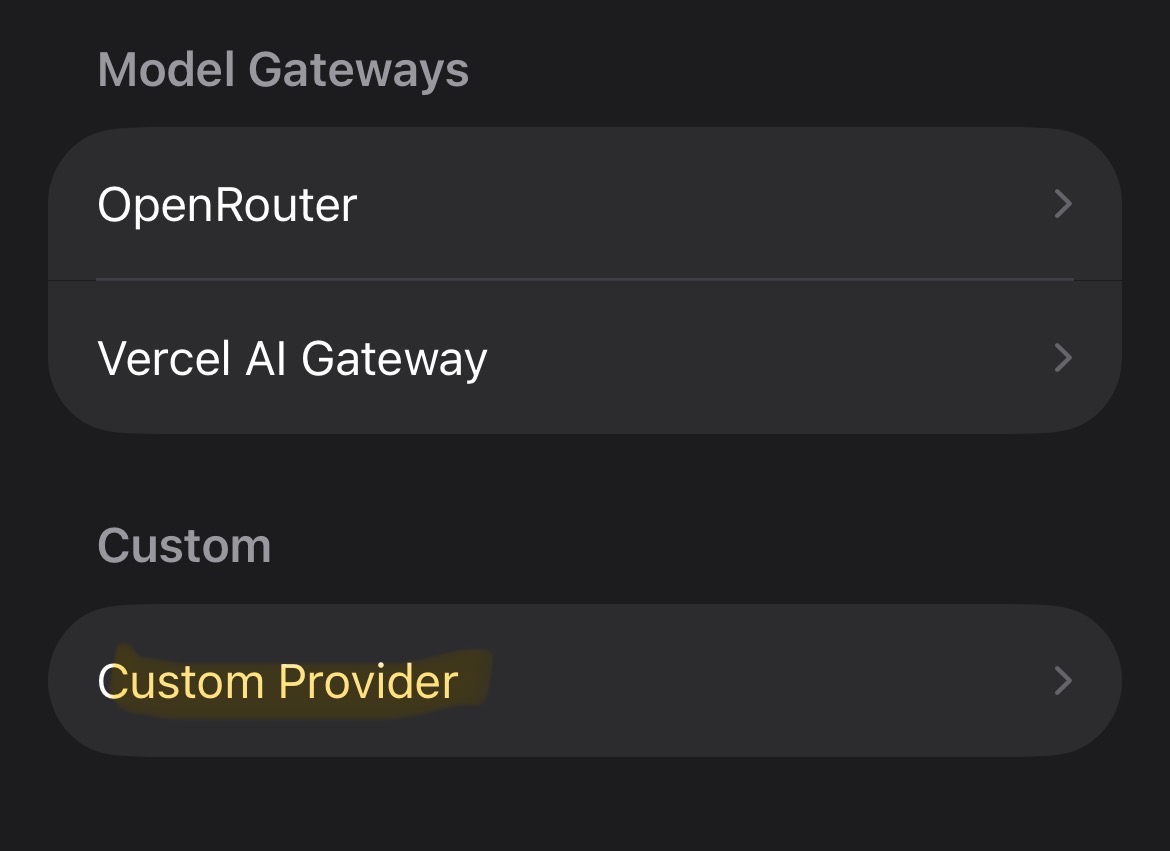
- 4Choose Custom Provider
Scroll down and tap Custom Provider.
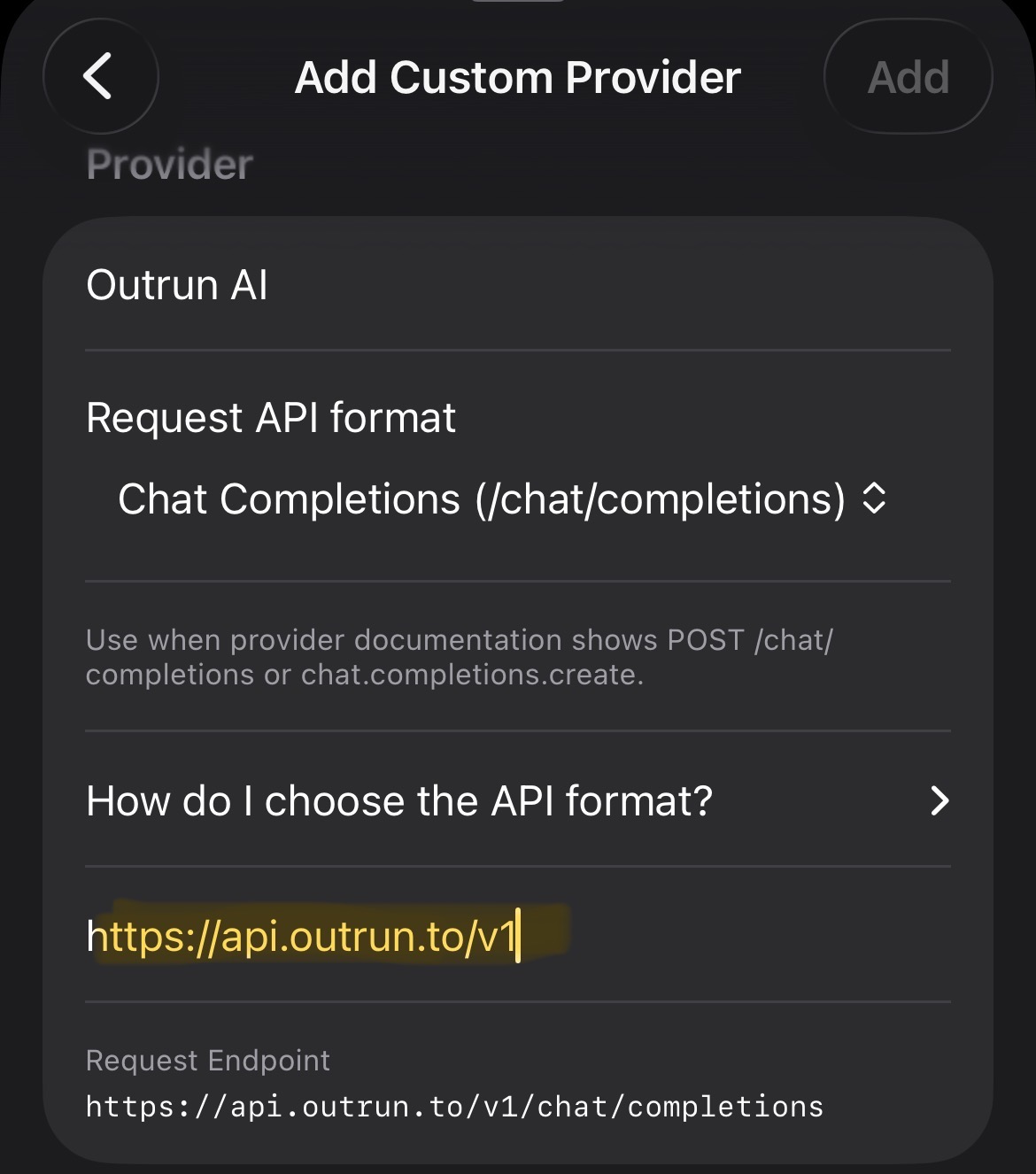
- 5Enter the provider details
Name it Outrun AI. Choose Chat Completions. Set Base URL to https://api.outrun.to/v1 — do not add /chat/completions.
- 6Add your Outrun API key
Choose Bearer API key. Paste your Outrun key into the secret field, never into chat.
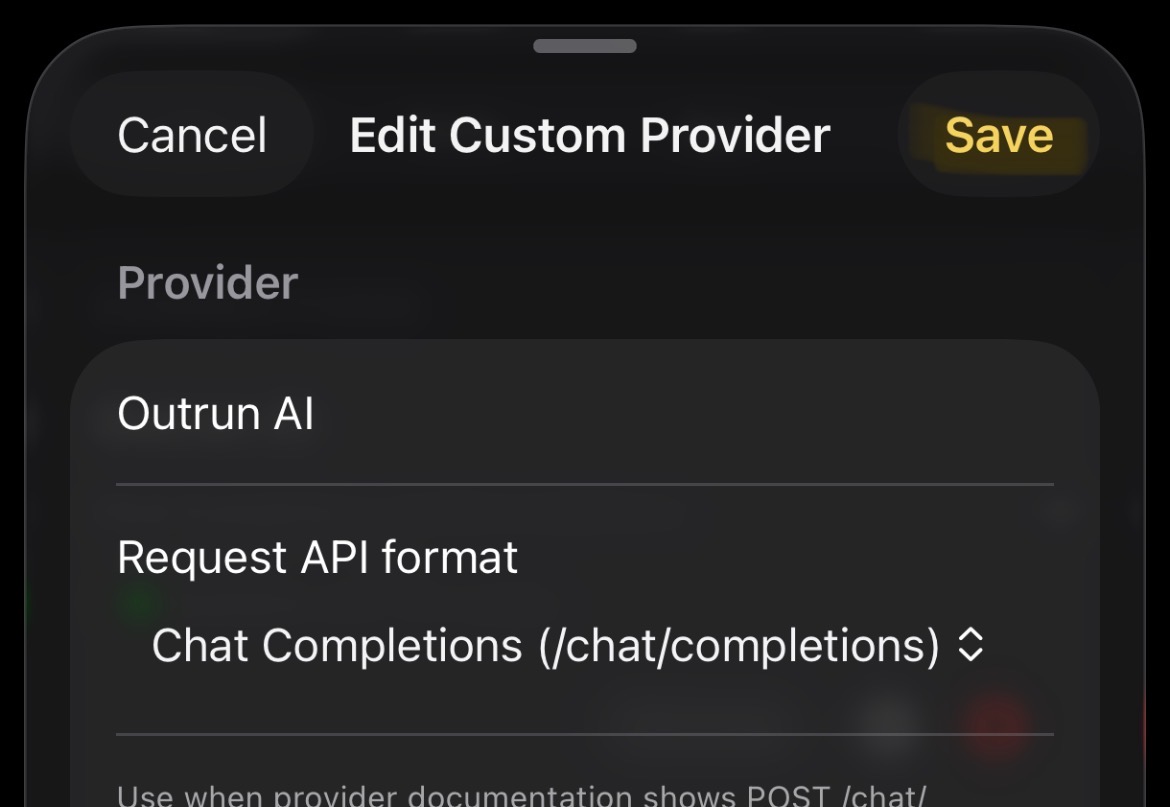
- 7Save the provider
Tap Add to create the provider, or Save if you are editing it.
- 8Choose your model
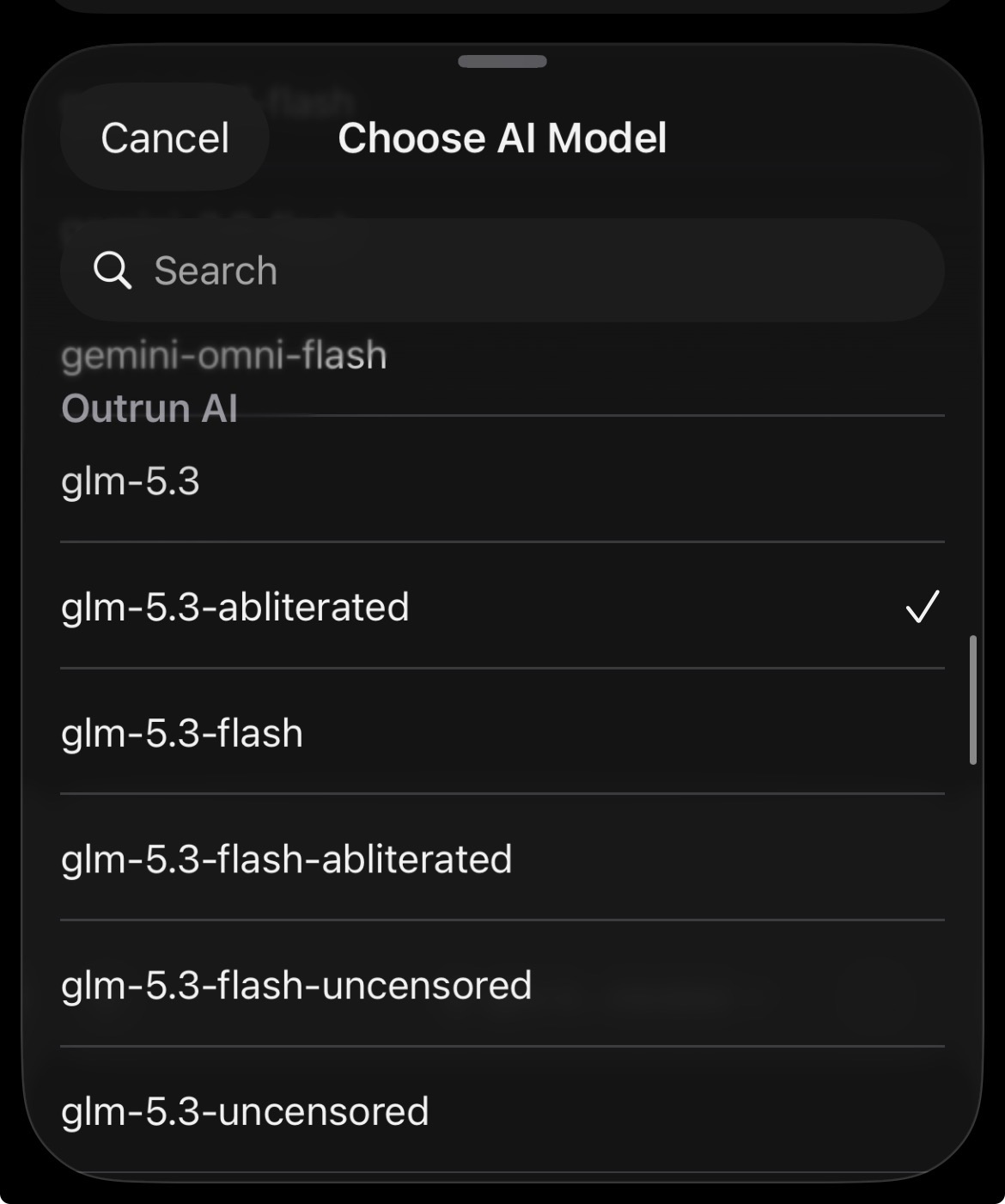
Open a chat. Tap the model picker and choose glm-5.3-abliterated under Outrun AI, or another available Uncensored model. You can also enter deepseek-v4.1-flash-abliterated-fast or deepseek-v4.1-flash-abliterated as the exact Model ID.
- 9Send a short test
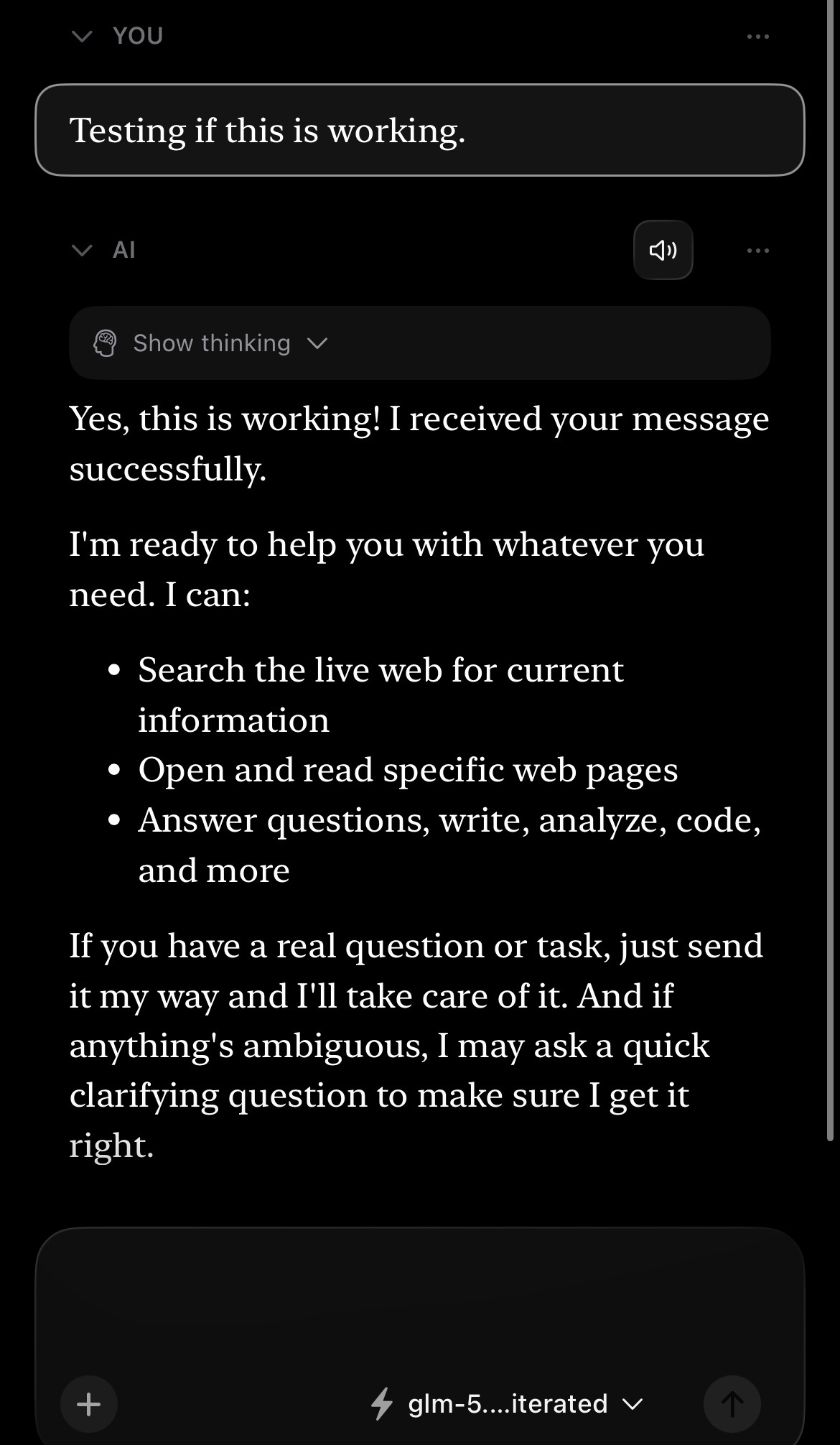
Send: Reply with OK only. A reply confirms the connection. This test uses Outrun credit.
Optional: connect your Zo cloud computer
Let your AI run code, work with files, and build projects on a cloud computer while you use your phone. You need your own Zo account. Zo currently offers a free trial; ongoing computer access follows its plan limits. Outrun model usage still uses your Outrun credit.
- 1Open Zo Settings
Sign in to Zo. Open its menu and tap Settings.
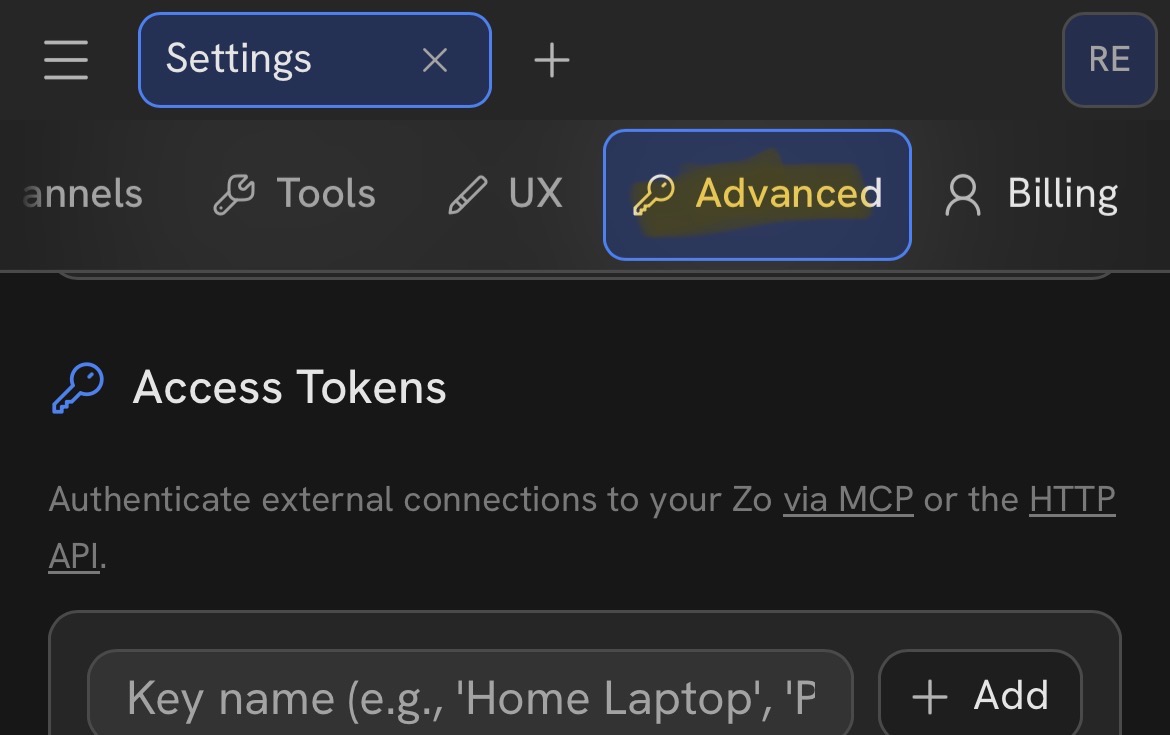
- 2Go to Advanced
Swipe the settings tabs to Advanced. Open Access Tokens.
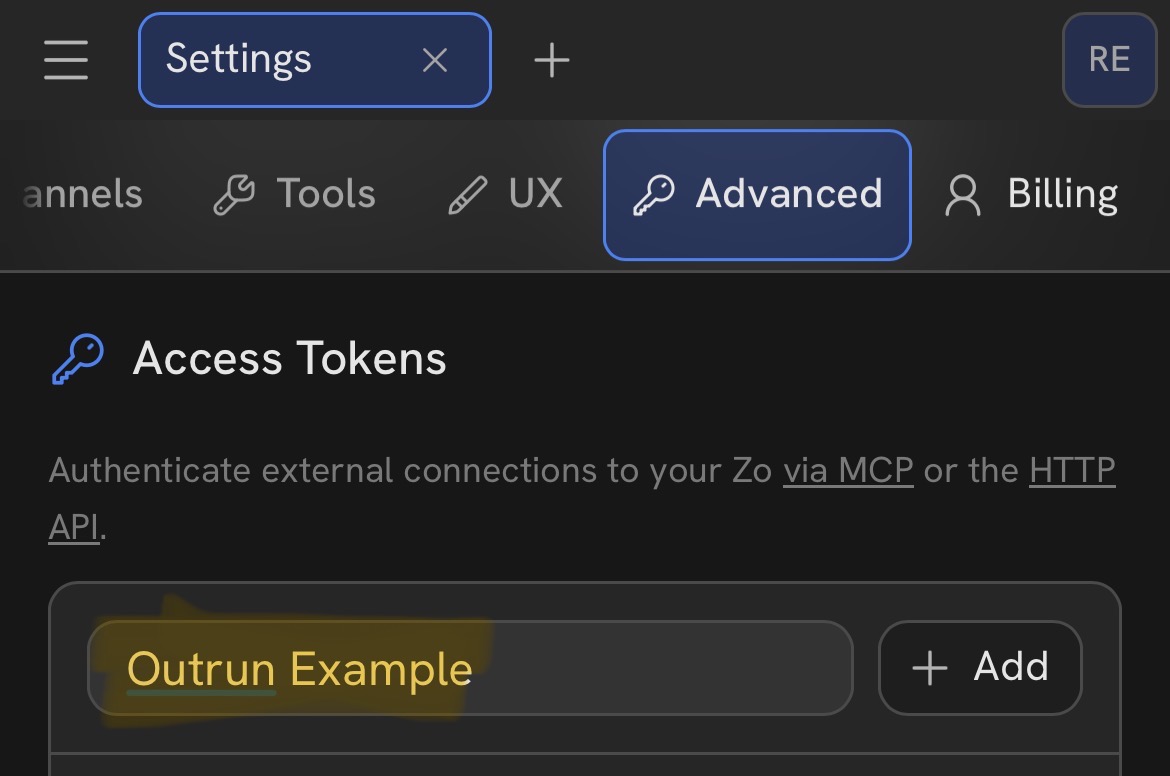
- 3Create and copy your access token
Enter a token name, tap + Add, and copy the new token. Keep it private.
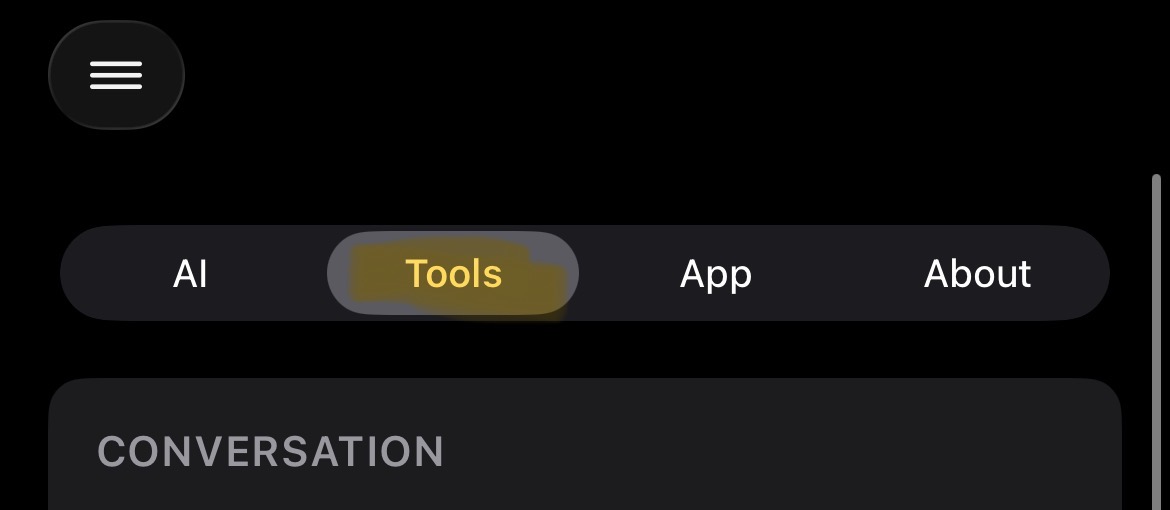
- 4Open Cumbersome's Tools settings
Return to Cumbersome. Open Settings and tap Tools.
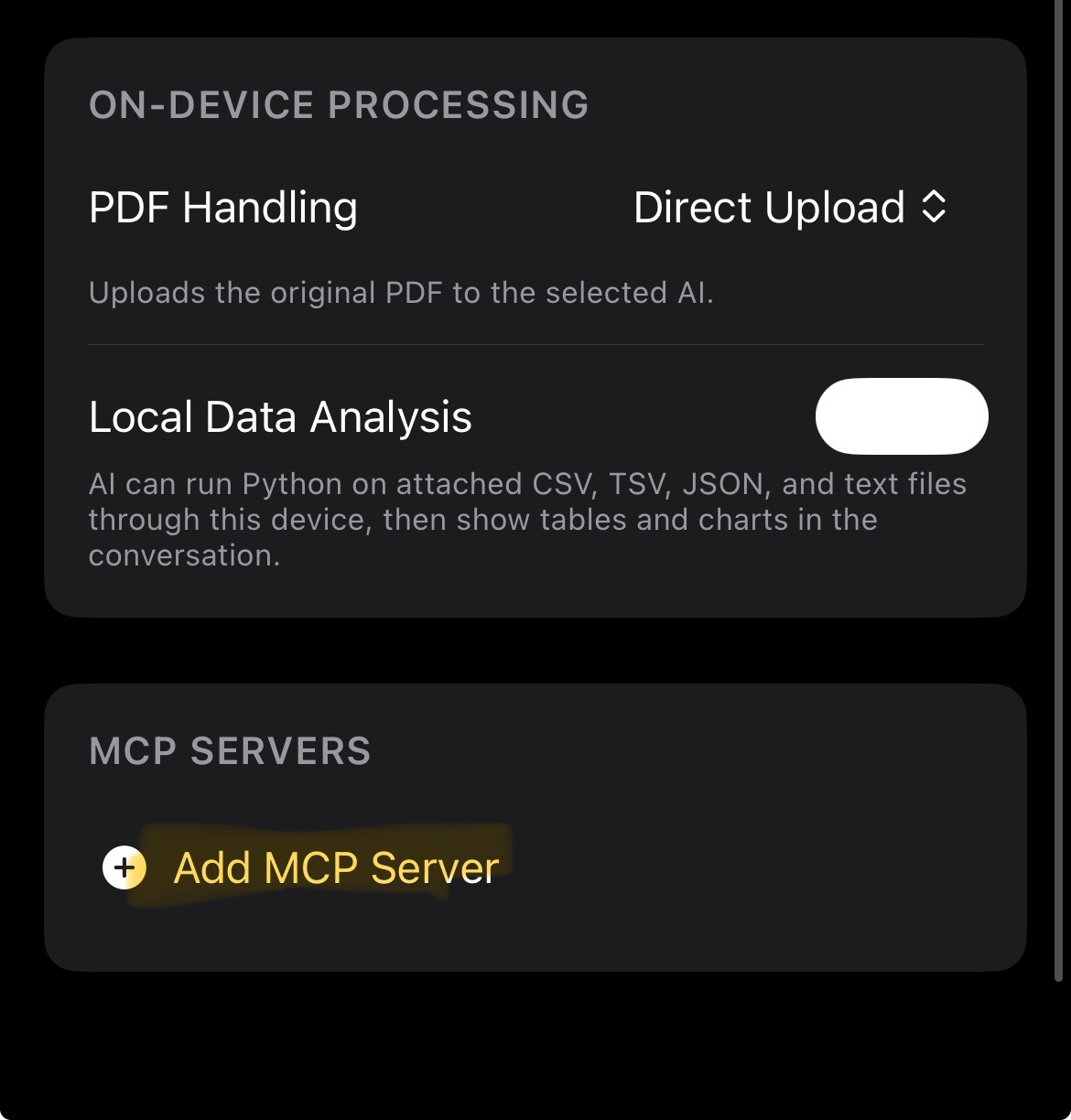
- 5Add an MCP server
Scroll to MCP Servers and tap Add MCP Server.
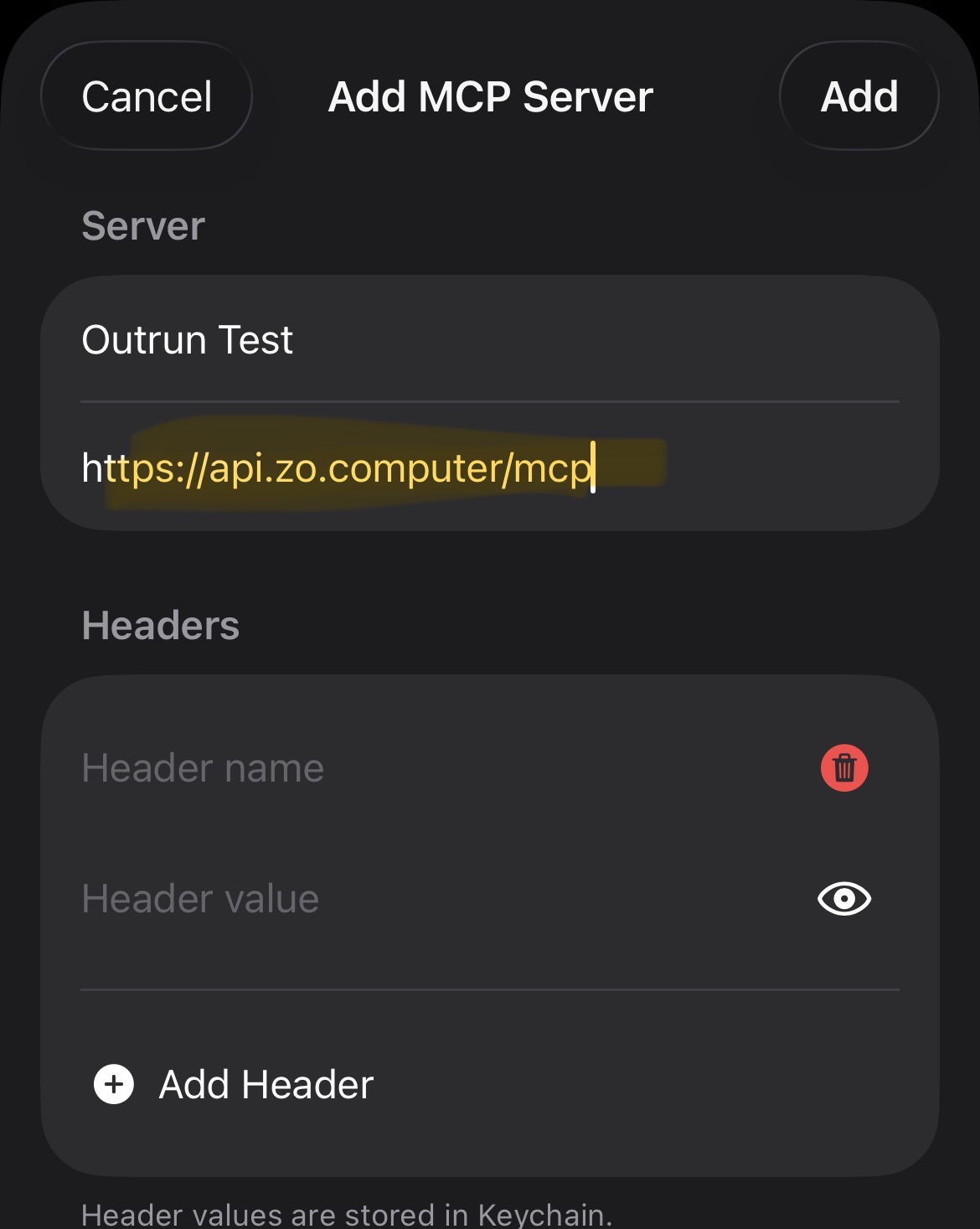
- 6Enter the Zo server address
Name it Zo Computer. Enter https://api.zo.computer/mcp as the server URL.
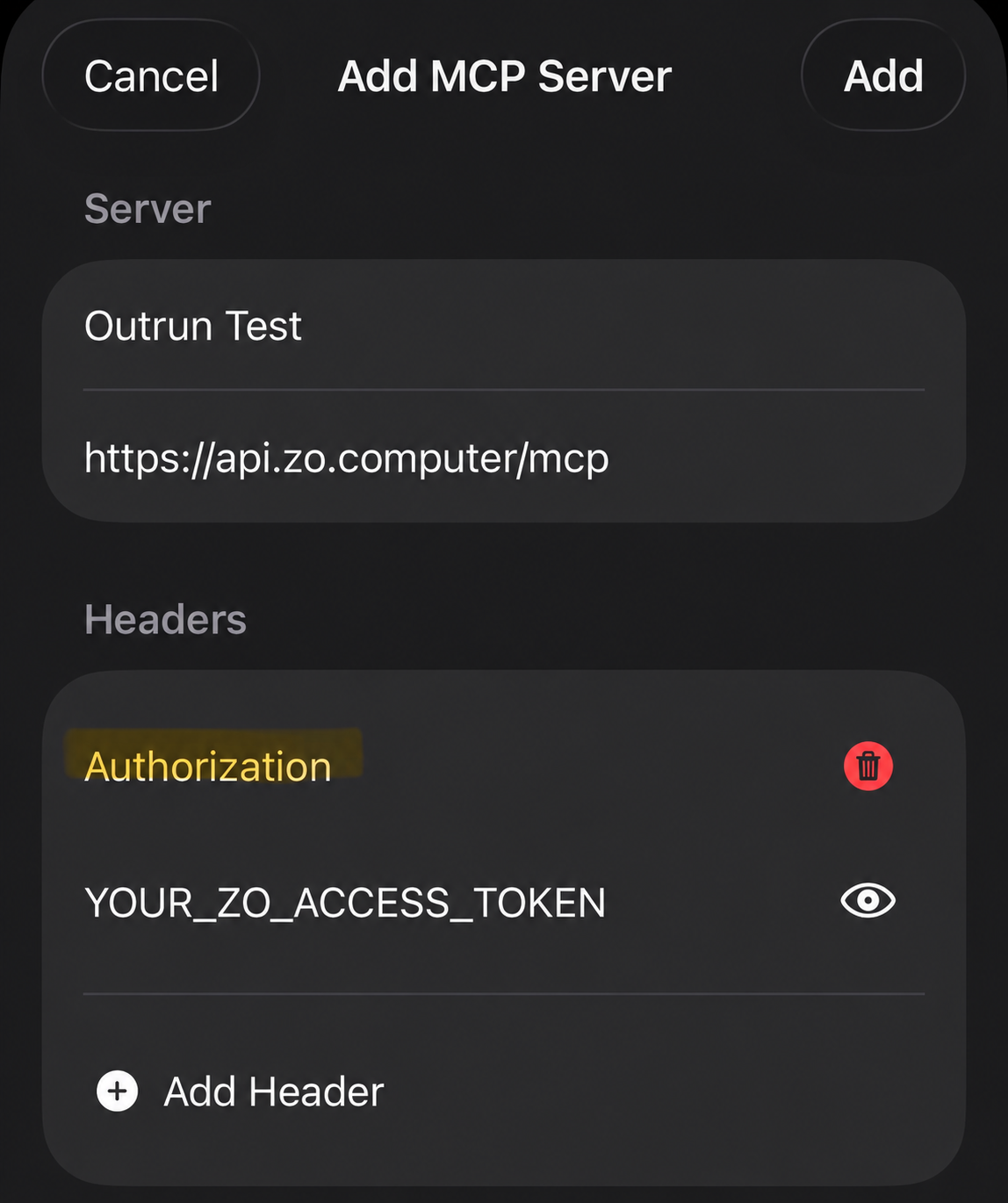
- 7Add the Authorization header
Header name: Authorization. Header value: your Zo access token only.
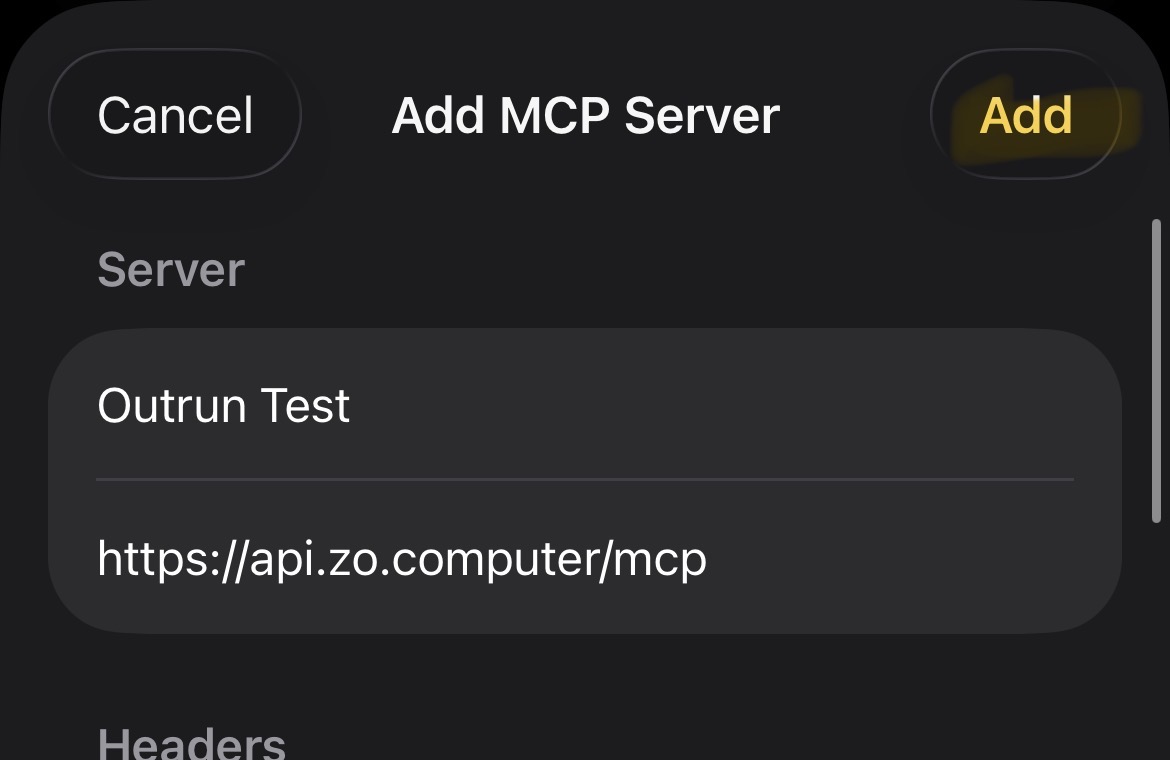
- 8Save the MCP connection
Tap Add in the top-right corner. Enable the Zo tools for your chat if prompted.
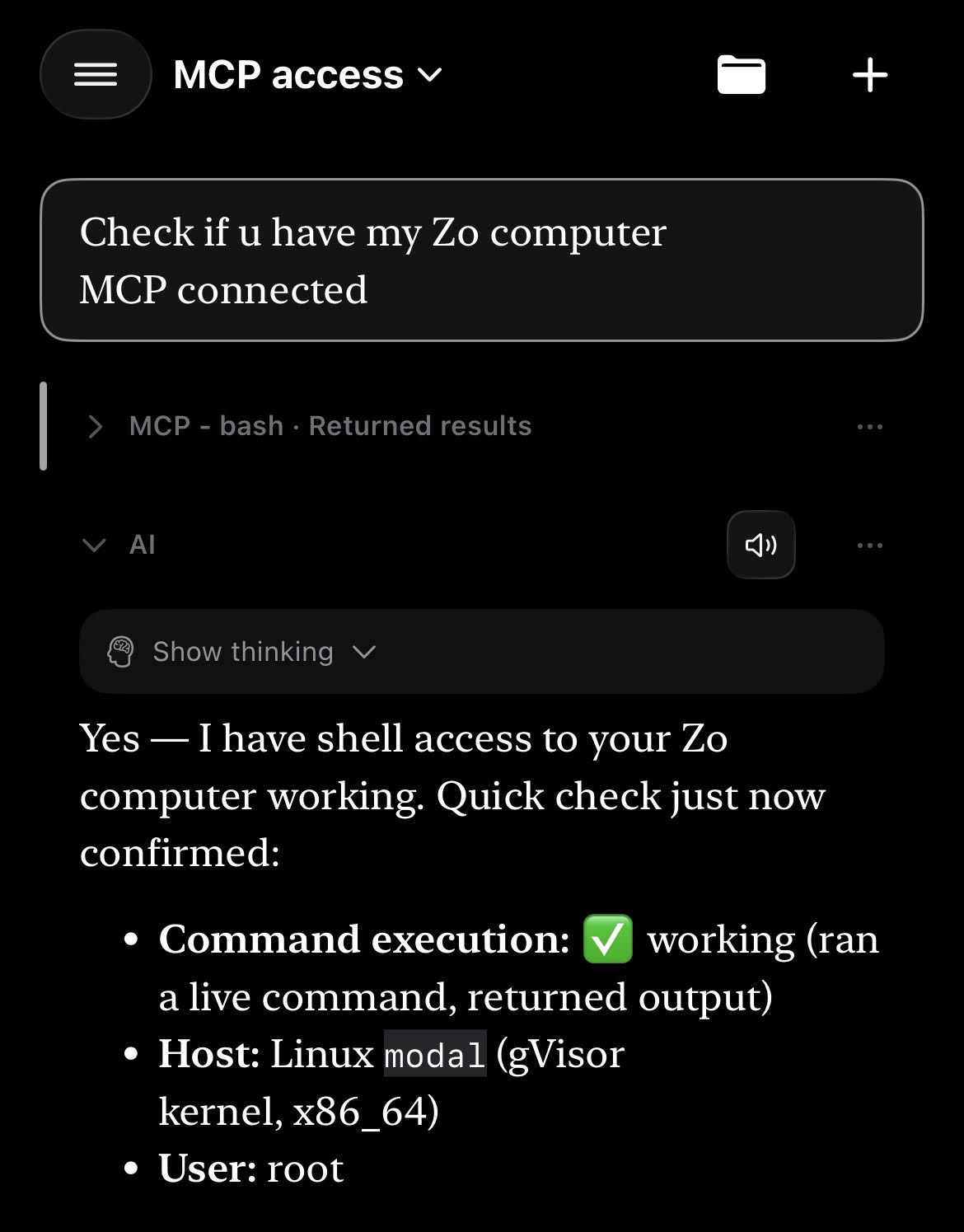
- 9Check the actual tool connection
Ask: Check my Zo MCP connection by running pwd. Do not change files. Confirm a successful MCP tool result appears.
Connection help
If tools do not load, recheck the URL and use a current Zo access token, not your Outrun key. The raw-token value above follows this Cumbersome setup. Other MCP clients may require Bearer followed by a space and the token in the header value; follow that client's instructions. For a 401, check its authentication format or replace a revoked token. If tools load but a model does not call them, enable tools for the chat and choose a model that supports tool calls.
Manual settings and examplesShow
Configuration Template
Cumbersome → Settings → AI → Connect Provider → Custom Provider
Provider: Outrun AI
Request API format: Chat Completions (/chat/completions)
Base URL: https://api.outrun.to/v1
Authentication: Bearer API key
API key: enter your Outrun key privately
Model: glm-5.3-abliterated
# Other available Model IDs: deepseek-v4.1-flash-abliterated-fast, deepseek-v4.1-flash-abliterated
If something goes wrong
Outrun key rejected (401)
Use your current Outrun key in the model provider, then save. Your Zo access token belongs only in the separate MCP connection.
Not enough credit (402)
Check your Outrun balance and key spending limit, then add credit if needed.
Wrong URL or unavailable model (400/404/503)
Use Chat Completions and keep the Base URL exactly https://api.outrun.to/v1. Select an available model from Models & Pricing.
Busy or interrupted request
For 429, wait for the active request or rate limit to clear. If a paid request is interrupted, check Activity before resubmitting it.
Model choices and service notes
Choose an available model from Models & Pricing. The screenshots show glm-5.3-abliterated; refusal behavior varies by model and prompt. A chat reply confirms the model connection, not every tool or computer capability. Outrun usage is billed to your API credit. If a paid request is interrupted, check Activity before trying again. MiMo model IDs: mimo-v2.6-flash-uncensored-thinking, mimo-v2.6-flash-abliterated, mimo-v2.6-flash-uncensored. MiMo reasoning tokens are output tokens and use the output rate. Model/tool capabilities depend on the chosen model; do not use the context window as an output-token limit.